
🐳 Effortless Deployment: Install Docker and Run Hello World on Your BrainHost VPS
Are you looking for a powerful, flexible, and easy-to-manage deployment environment? With Docker, you can package your application and all its dependencies into an isolated container, ensuring consistency and rapid deployment across different environments.
Alex Chen
DevOps Engineer
Nov 25, 2025
7 min read

This tutorial will guide you through installing Docker on your BrainHost VPS server and launching the classic "Hello World" container.
👉 Don't have your BrainHost VPS yet? Visit BrainHost now to experience high-speed, stable, and cost-effective cloud computing services!
🚀 Step One: Connect to Your BrainHost VPS
First, you need to connect to your VPS server using SSH.
- Linux/macOS Users:
ssh your_user@your_vps_ip_address - Windows Users: Use tools like PuTTY or Windows Terminal to connect.
🛠️ Step Two: Install the Docker Engine
We recommend using the official Docker installation scripts, which ensure you install the latest stable version. This guide is tailored for major Ubuntu/Debian systems.
1. Update System Package Index
It's always a good practice to update your system before installing any new software:
sudo apt update
2. Install Necessary Dependencies
Install the packages that allow apt to use repositories over HTTPS:
sudo apt install ca-certificates curl gnupg
3. Add Docker's Official GPG Key
To verify the downloaded software packages, you need to add Docker's official GPG key:
sudo install -m 0755 -d /etc/apt/keyrings
curl -fsSL https://download.docker.com/linux/ubuntu/gpg | sudo gpg --dearmor -o /etc/apt/keyrings/docker.gpg
sudo chmod a+r /etc/apt/keyrings/docker.gpg
4. Set Up the Docker Repository
Add the Docker stable repository to your system:
echo \
  "deb [arch="$(dpkg --print-architecture)" signed-by=/etc/apt/keyrings/docker.gpg] https://download.docker.com/linux/ubuntu \
  "$(. /etc/os-release && echo "$VERSION_CODENAME")" stable" | \
  sudo tee /etc/apt/sources.list.d/docker.list > /dev/null
5. Update Package Index Again and Install Docker
Update your apt package index to include the Docker repository, then install the Docker Engine, CLI, and Compose:
sudo apt update
sudo apt install docker-ce docker-ce-cli containerd.io docker-buildx-plugin docker-compose-plugin
✅ Step Three: Verify the Installation
Once Docker is installed, you can verify that it is running correctly by executing a test command:
sudo docker run hello-world
If successful, you will see output similar to this:
Unable to find image 'hello-world:latest' locally
latest: Pulling from library/hello-world
... (Download information)
Hello from Docker!
This message shows that your installation appears to be working correctly.
... (More explanatory information)
This confirms that Docker successfully pulled the hello-world image from Docker Hub and ran it on your BrainHost VPS!
🧑💻 Step Four: Run Docker as a Non-Root User (Optional but Recommended)
By default, you need to use sudo to run Docker commands. For convenience, you can add your user to the docker user group, eliminating the need to type sudo every time.
1. Add Your Current User to the docker Group
Replace your_user with your actual username (usually the one you logged in with via SSH):
sudo usermod -aG docker your_user
2. Re-log In
To make the change effective, you need to log out and then log back into your VPS session. Alternatively, you can run the following command to activate the group:
newgrp docker
3. Run the Test Again (Without sudo)
You can now run the hello-world container without sudo:
docker run hello-world
🎉 Congratulations!
You have successfully installed Docker on your BrainHost VPS and run your first container!
From here, you can leverage Docker's powerful features to deploy your web applications, databases, or any other service. BrainHost provides you with a stable, high-performance foundation to make your containerization journey smooth.
Next Steps:
- Want to learn more about Docker? Check out the official Docker documentation.
- Need more powerful server resources to run your containers? Visit BrainHost at BrainHost to upgrade your plan!
Quick Reference: Common Docker Commands
| Command | Purpose |
|---|---|
docker ps | View running containers |
docker ps -a | View all containers (including stopped ones) |
docker images | View downloaded images |
docker pull <image_name> | Pull an image from Docker Hub |
docker stop <container_id> | Stop a running container |
Tags
Alex Chen
DevOps Engineer
DevOps Engineer specializing in cloud infrastructure and automation.
Related Articles
Virtual Private Server Explained: Benefits & Upgrades
A complete guide to VPS: What it is, how it works, how to choose the right solution, benefits, and comparison with other hosting. Includes optimization tips.
How to Install Moltbot(Clawdbot) on BrainHost VPS
Run Clawdbot 24/7 on a BrainHost Ubuntu VPS, connect Telegram, install it as a service, and keep the dashboard private with an SSH tunnel.
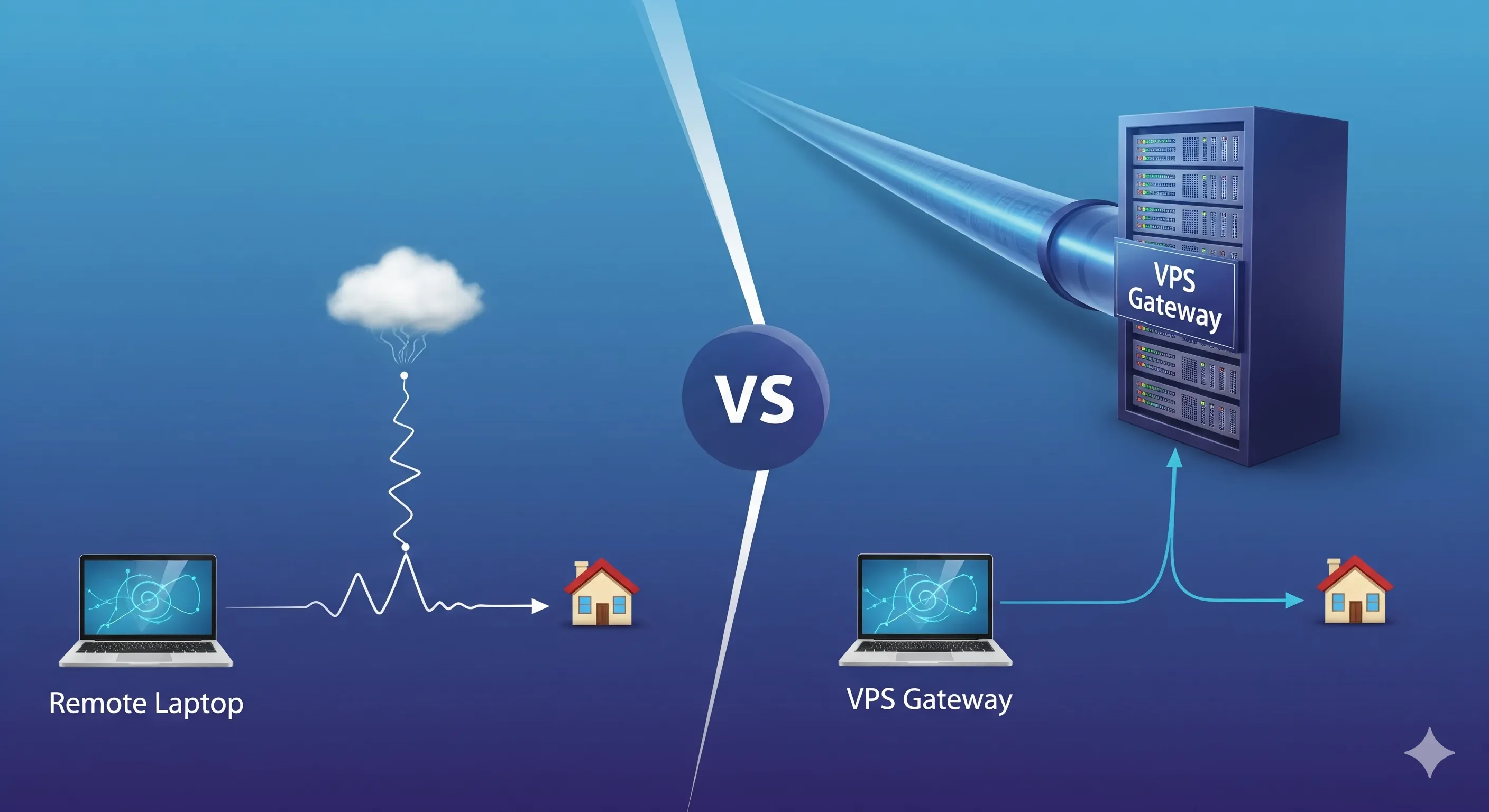
Deploy Your Own VPS VPN for Secure Home Network Access
Learn to set up OpenVPN on a VPS for stable, secure home network remote access. Compare this VPS solution with P2P tools like Tailscale and Zerotier.
BrainHost - A reliable VPS hosting platform offering high-performance virtual servers with advanced management capabilities.